
From a developer’s perspective, Claude is a powerhouse built for complex engineering workflows. It stands out for its exceptional ability to reason through intricate codebase architectures, refactor legacy code, and debug subtle logic flaws across multiple files thanks to its massive context window. Its code generation is highly precise, syntactically sound, and adheres to modern best practices, making it feel less like a basic autocomplete tool and more like an elite Principal Engineer acting as a pair programmer.
Lately, it has become very popular among developers due to this strength on the coding side, but not so much within SAP developer community, due to the ecosystem’s closed nature.

MCP Claude
To connect Claude with our SAP, we need to install an MCP (Model Context Protocol).
Introduced by Anthropic (the same company that developed Claude), it is an open-source standard that acts like a “universal port” (think USB-C) for AI assistants.
Previously, if developers wanted an AI to connect to a database, a code repository, or a web browser, they had to build custom integration code for every single tool and every single AI model.
MCP fixes this by creating a uniform way for AI models to securely connect to external data sources and tools.
In this blog, we present you step by step how to install a very useful Eclipse plugin that connects Claude Code to your SAP system, without needing to configure anything. It runs an MCP (Model Context Protocol) server inside Eclipse, giving Claude Code full access to your ABAP codebase — search, read, write, test, and activate objects, all from the command line.
1. Install the Plugin
Open Eclipse and go to Help → Install New Software…
Click Add… and enter:
- Name: SAP ADT MCP Server for Claude Code
- Location: https://yahornovik.github.io/sap-adt-mcp-server/
Check SAP ADT MCP Server for Claude Code, click Next → Finish, and restart Eclipse.
2. Open the View
Go to Window → Show View → Other…, find SAP ADT MCP Server for Claude Code and open it.
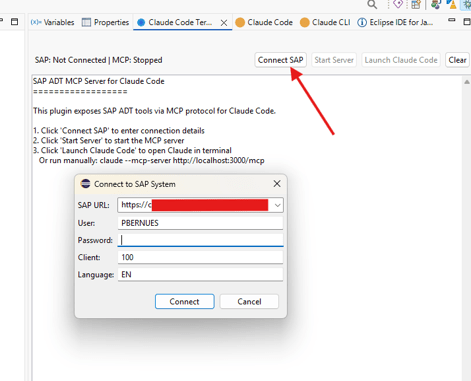
You’ll see a panel with four buttons: Connect SAP, Start Server, Launch Claude Code, and Clear.
3. Connect to SAP
Click Connect SAP. A dialog appears — fill in:
4. Start the MCP Server
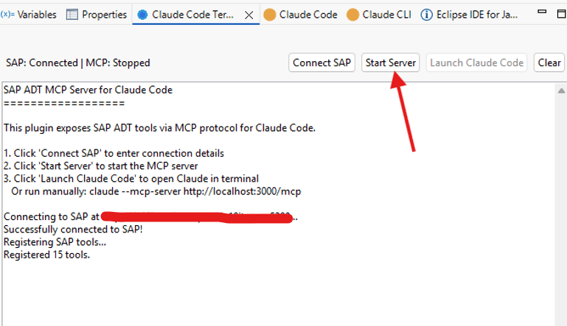
Click Start Server. This starts a local HTTP server on port 3000 that speaks the MCP protocol. The plugin automatically writes the MCP configuration to ~/.claude.json under the mcpServers key, adding both the ADT server and the SAP documentation server (mcp-sap-docs). Any existing settings in ~/.claude.json are preserved.
5. Launch Claude Code
Once the server is running, you need to run 2 commands:
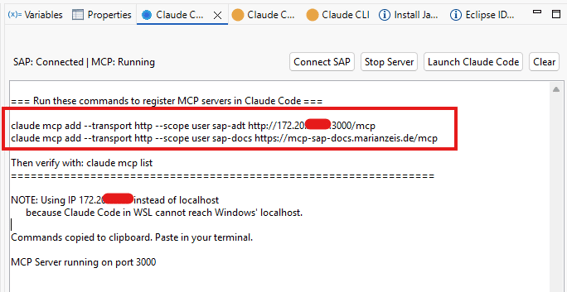
Note that, instead of ‘localhost’, you need to add your IP, as Claude Code cannot reach ‘localhost’. If your IP has changed, you will need to run this command before adding the new sap-adt connection:
claude mcp remove sap-adt
After adding both MCP servers (sap-adt and sap-docs), Claude mcp list should return ‘Connected’ for both of them:

Now, you are ready to use Claude Code with SAP.
You have two options:
Option A — Click “Launch Claude Code” This opens the Eclipse Terminal view (or your system terminal) so you can run Claude right inside your IDE.
(you can download also this plugin ito have the terminal integrated on your Eclipse IDE: https://marketplace.eclipse.org/content/claude-code-eclipse-ide)
Option B — Run from any terminal, or from Claude Desktop!! The MCP configuration was already setted in step 4, so Claude Code automatically picks up the SAP server. No extra flags needed.
Use cases
With the connector setted up, we are now able to perform actions such as:
SAP ADT (ABAP Development Tools) — for direct system interaction:
- Read/write ABAP source code
- Create/search objects
- Run unit tests and ATC checks
- Execute SQL queries
- Lock/unlock objects for editing
- Syntax checks and activation
SAP Docs — for documentation and discovery:
- Search SAP documentation
- Browse ABAP feature matrix
- Search SAP Community and Discovery Center
Example
As a use case, we have created this basic report:
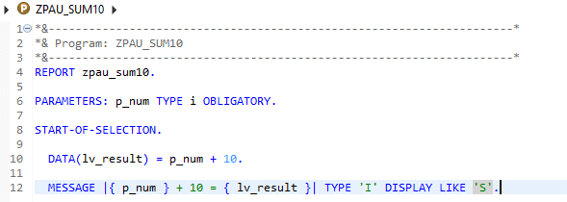
Let’s interact with Claude to improve it, analyze it and document it!
Firstly, we check that it can access to our object:
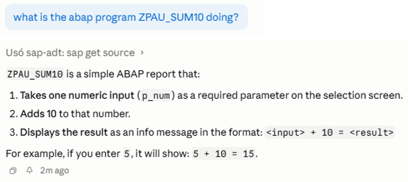
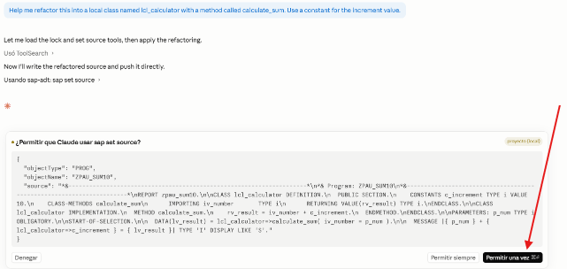
Refactor it to Object-Oriented (OO) Design:
Before modifying anything, it asks for confirmation. Right button ‘Allow once’, left button ‘Allow always’.
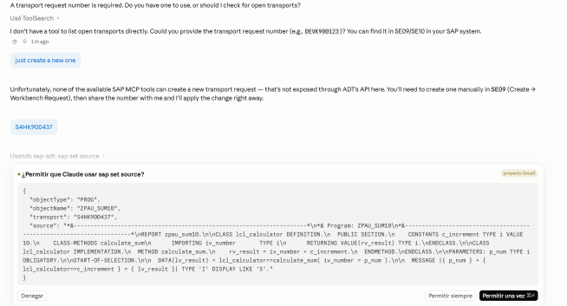
It cannot create Transport Requests, so we will need to include one:
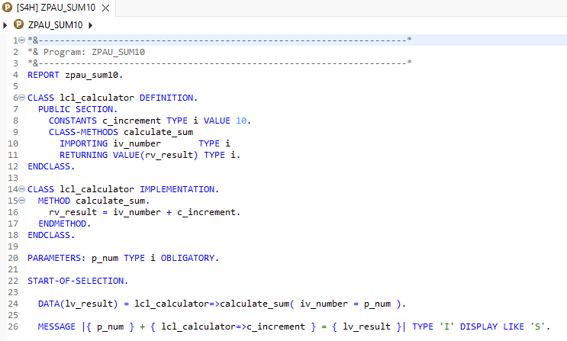
And we can see that the program has been modified as expected:
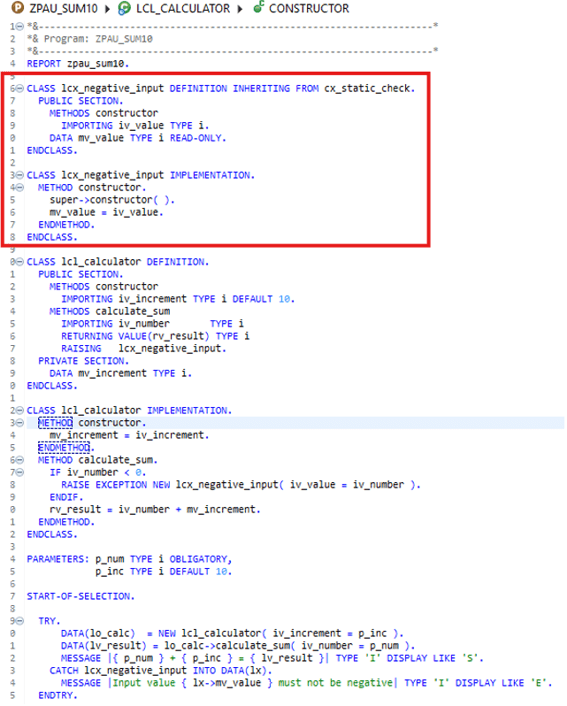
Handling exceptions and improving the code

And the result is magnific:
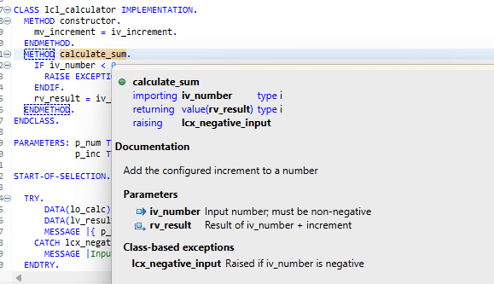
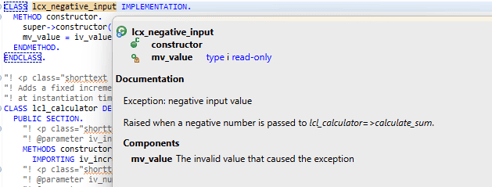
ABAP Documentation

Again, very useful documentation has been created (F2 key menu):
ABAP Unit tests

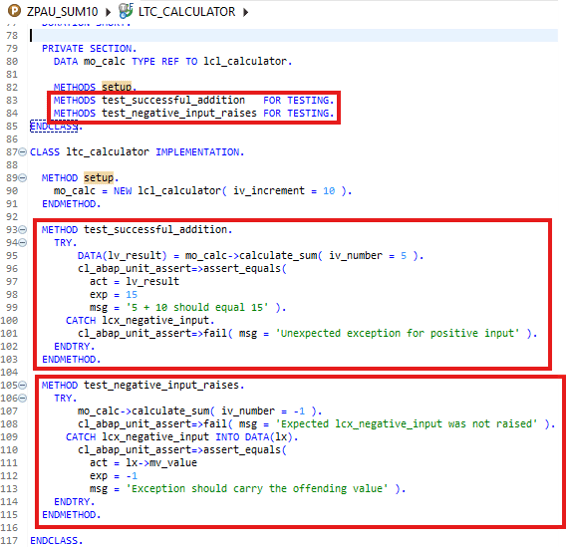
And they can be run using Ctrl+Shift+F10:
Conclusion
As demonstrated in this example, integrating Claude into the SAP development workflow significantly enhances the developer experience. It boosts efficiency and streamlines traditionally labor-intensive tasks such as documentation and unit testing, but also helping to increase the quality of the coding, and the fast error fixing.