In the modern software world, integration is playing an increasingly critical role to connect systems. To integrate systems, you look for an iPaaS like Boomi, SAP Cloud Integration, Mulesoft or open-source projects like Apache Camel. You can use all these iPaaS platforms in the cloud, but as your number of integrations grows over time, you face some latency for integrations and require more resources. This is exactly where on-premises installations can meet your needs. In this blog series, I’ll first demonstrate the Atom Runtime installation for Boomi. Next, I’ll cover the Molecule Runtime, and if I have enough time, I’d like to show the SAP Edge Integration Cell installation for SAP Cloud Integration
Why Do We Need a Customer-Hosted Runtime Even When We Have a Cloud Runtime?
If you need a more secure, maintainable, and observable setup, you should consider installing an Atom or Molecule runtime. A customer-hosted runtime keeps your data within your own network, gives you full control over networking and firewall configurations, and allows integration with monitoring tools such as Grafana.
You can install the Atom Runtime on public cloud providers such as AWS, Google Cloud, or Azure, as well as on your own on-premises servers. This approach gives you full control over networking and connectivity for your Boomi runtime.
Boomi runtimes also provide several advantages, including horizontal and vertical scalability, improved infrastructure control, and better integration performance.
You can find more detailed explanation in the official Boomi documentation
Boomi Atom Runtime with Docker Prerequisites
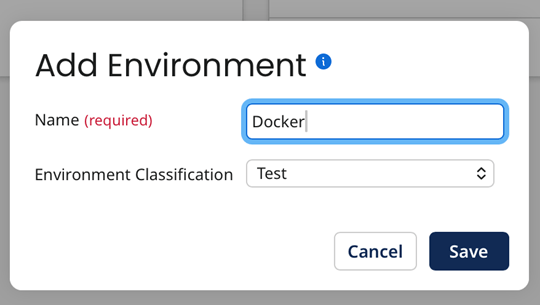
Create an environment for Docker. Manage > Runtime Management > New > Environment
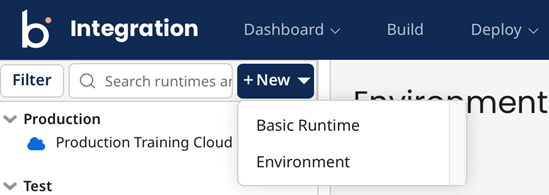
Then we need to add a new basic Runtime. Follow this path: Manage > Runtime Management > New > Basic Runtime
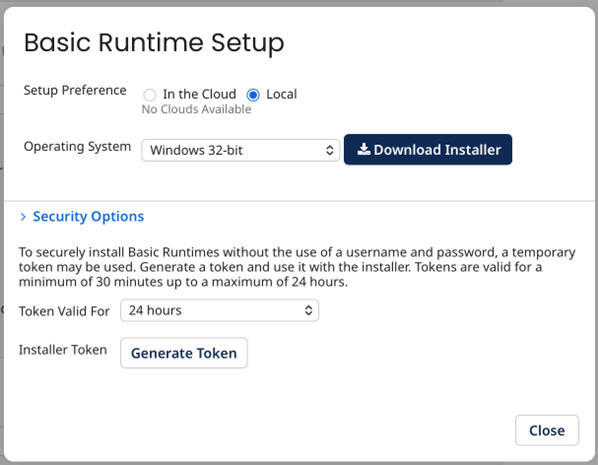
Click Generate Token button.
Click security options and generate token for installation. We don’t need to download anything at this point. Please note down the token, as you will need it during installation.
How to Install the Boomi Atom Runtime
You can complete the installation using the Docker file. Don’t forget to enter the token you noted in the previous step into the INSTALL_TOKEN field!
(For detailed explanation about Atom installation you can follow this official page)
Boomi Atom Docker Compose file
name: "BoomiAtom-Local"
version: "3.8"
services:
  atom:
    container_name: boomi_atom-container
    image: boomi/atom:5.5.0-alpine # Boomi Atom Version. You can also use boomi/atom:release. The SAP connector and the SAP JCo V2 connector are not compatible with the version 4 images. If you need to connect to your SAP systems, use the version 5 RHEL images instead.
    volumes:
      – ./boomi_docker:/mnt/boomi:Z
    ports:
      – "9090:9090"
    hostname: "boomi-local-atom-docker"
    environment:
      INSTALL_TOKEN: "your token" # Specifies a unique installer token. A token is valid only for the account in which it was generated. Tokens expire after a set amount of time ranging from 30 minutes to 24 hours.
      BOOMI_ATOMNAME: "boomi-local-atom-docker" # Specifies the name of the runtime you are installing.
      ATOM_LOCALHOSTID: "boomi-local-atom-docker" # Specifies a unique and persistent local host ID, independent of any assigned IP address.
    networks:
      – boomi-net
# Network defining for future.
networks:
  boomi-net:
    name: boominet
    driver: bridge
When running Boomi Atoms on Docker in a production environment, always ensure your local volumes (like ./boomi_docker) are backed up regularly. Since the Atom’s execution logs and internal configuration reside there, a persistent storage strategy is key to avoiding data loss during container updates.
Then run docker compose up -d command on terminal. After that, you should see the container running in your Docker environment and the runtime available in your Boomi account.
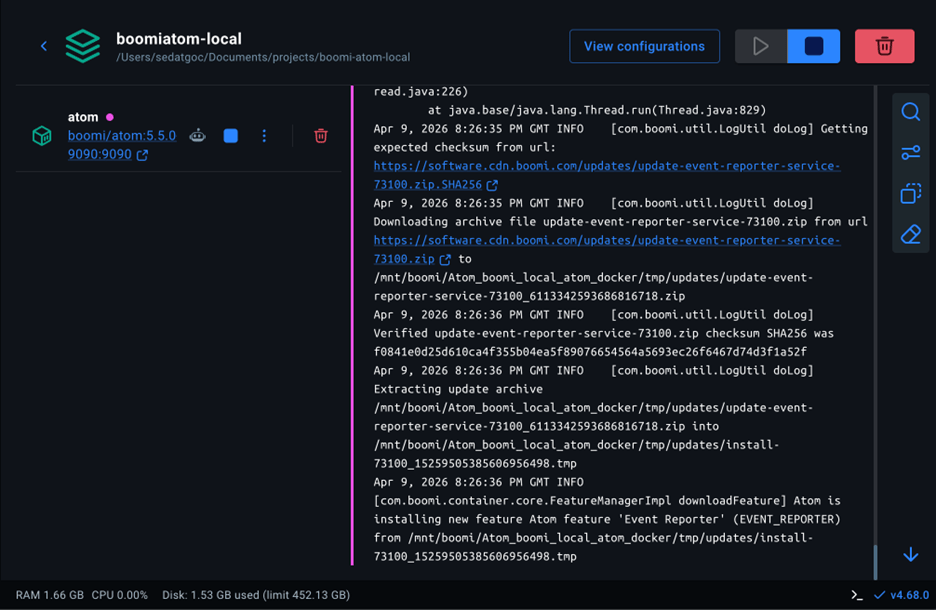
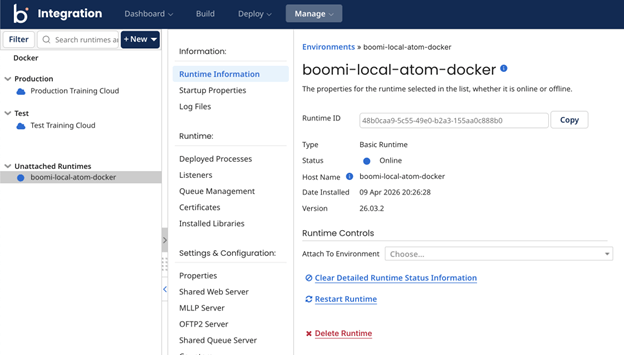
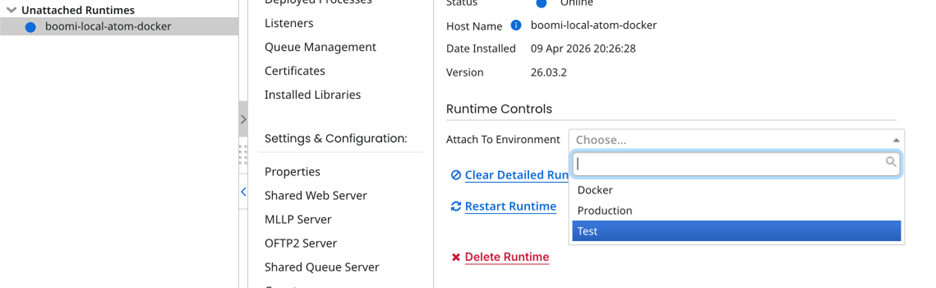
After the installation you need to attach this docker runtime with Docker environment.
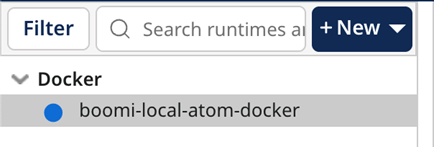
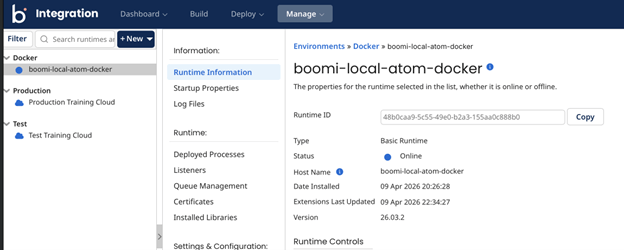
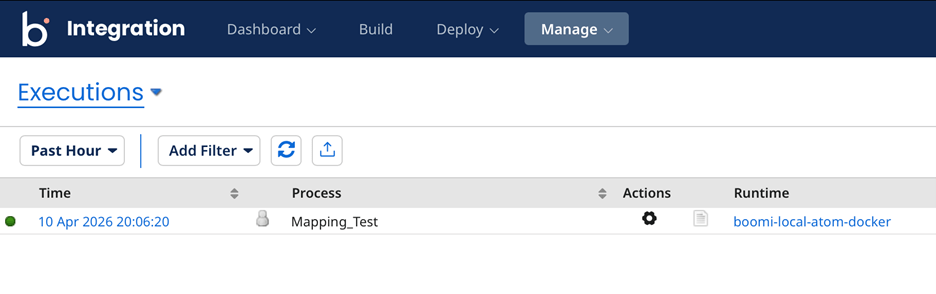
To test the new runtime, I deployed a process to it and executed it.
Boomi Atom Runtime with Docker: Final Setup and Next Steps
In this post, we walked through installing a Boomi Atom Runtime locally using Docker. Running a customer-hosted runtime gives you greater control over performance, security, and scalability compared to the shared cloud runtime. With just a Docker Compose file and an installation token, you can have a fully functional Atom up and running in minutes. Stay tuned!