
Extracting data from PDFs or images throughout the process is tedious job: the person responsible for the task needs to retrieve data out of a document and enter it into a system. Especially when it comes to processing a large number of documents, it becomes a big challenge and requires a lot of time. Also, manual matching is repetitive and error prone. Luckily, there are tools that support the automation of tasks like data extraction, making this process more efficient. In this article, we will explore the SAP process automation for data extraction.
What is the SAP tool for data extraction?
The SAP Build Process Automation is an innovative solution that enables application development by non-programming users. It focuses on the transformation, improvement, and innovation of business processes through no-code workflow management capabilities and process automation using robots.
This tool makes it easier for business users and technology specialists to become freelance developers. With intuitive, low-code and no-code tools, SAP Build Process Automation takes companies one step closer to automation, leveraging the experience and expertise of freelance developers.
By implementing SAP Build Process Automation, you can extract data from documents and extend it with the approval flow before posting it to the target system. Leveraging the power of no-code, citizen developers can build, adapt, improve, and innovate business processes with minimum assistance from IT resources.
What are the advantages to automating the extraction process?
The SAP Build Process Automation on the SAP Business Technology Platform combines the Workflow and RPA capabilities in an easy-to-use, no-code, AI-powered experience. It allows you to automate the process of data extraction from various documents with the help of an embedded Document Information Extraction service, helping to improve accuracy and productivity, increase speed in processing documents and free up time for higher value tasks.
Step-by-step to activate the SAP Build Process Automation
In this part, you will learn:
- What is a Desktop Agent
- How to install and set up the Desktop Agent
- How to register a tenant in the Desktop Agent
What is the Desktop Agent?
The Desktop Agent is a component of SAP Build Process Automation that is installed locally on user desktops. It executes automation projects that launch and run applications of various kinds, read information from screens, enter data, click options, and process data.
When you install the Desktop Agent, this will automatically set up the SAP Build Process Automation web browser extension for Google Chrome and Edge.
Prerequisites to install the Desktop Agent
- A Windows PC or a MAC (in this case, don’t forget to install a Virtual Desktop Infrastructure – VDI)
How to install the Desktop Agent
To prevent issues during the installation, please close all the Chrome tabs opened on your machine. The setup program is provided in the form of an industry standard Windows MSI installer. You can download it from the SAP Software Center.
The minimum version of the Desktop Agent supported by SAP Build Process automation is 2.0.20.
- Download the latest version of the MSI file extension.
- The MSI will have a new version according to every new release. Always download the latest version.
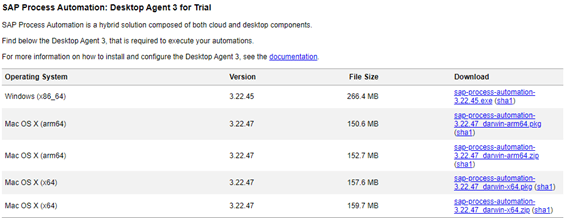
- Select Next to begin the installation process.
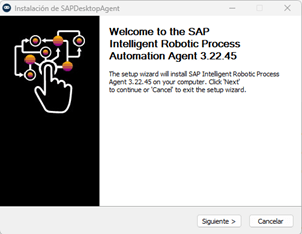
- Once the installation has been successfully completed, choose Finish, and launch your Desktop Agent.
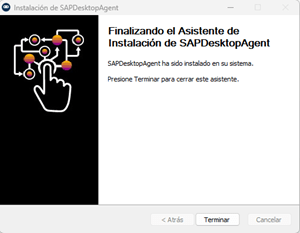
- Once installed, open your browser to add the extension. A Google Chrome extension and an Internet Explorer add-on are installed when you install the Desktop Agent, but you must enable them (at least the Google Chrome extension).
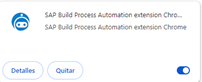
How to register the Desktop Agent Tenant
Once you’ve completed the installation steps of the SAP Build Process Automation setup wizard, you need to register your agent and connect it to a SAP Build Process Automation tenant in order to execute automations.
Once the Desktop Agent is installed, the icon will be available on your System Tray.
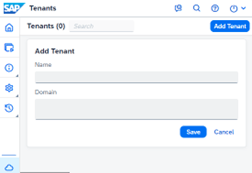
- When the Desktop Agent Tenant Registration window pops up, enter:
– the name of your tenant in the Name field.
– the tenant URL you want to connect to and that you copy from the Agents tab in the Factory and paste in the Domain field.
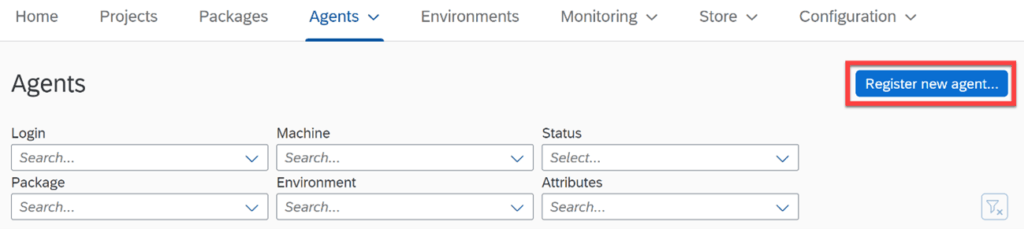
- On the SAP Intelligent Robotic Process Automation Factory homepage, go to the Agents tab and then click on the Register New Agent button on the right-hand side of the screen.
- When the pop-up opens, select Copy and Close.
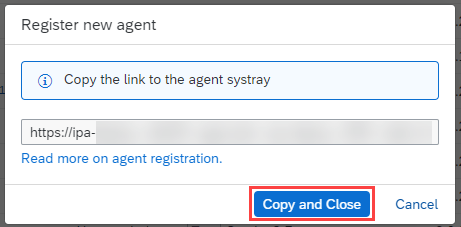
- Then paste the URL into the Domain field on your Desktop Agent Tenant Registration window.
- Select Save.
- Log in to your SAP Intelligent Robotic Process Automation Factory tenant with your username or e-mail and password.
Extracting data from PDFs: example
This is a simple example of how to create using Process Automation. It consists of reading the information on an invoice in PDF format.
The example of an invoice used is as follows:
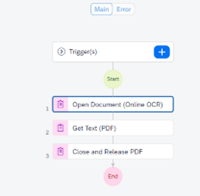
In the “Open Document (Online OCR)” section, in the Inputs section, you must indicate the Document Path that you want to read.
For example: C:\Users\username\Desktop\Process Automation\invoice-a.pdf
The next step is to add a function that reads the text in the PDF, this will take the text and create a JavaScript Object Notation (JSON) file with the extracted information.
In this case, the system issues this document, a JSON with a single field that contains all the information read from the PDF:
{
  "textContent": "SlicedInvoices Invoice From: Invoice Number INV-3337 DEMO - Sliced Invoices Order Number 12345 Suite 5A-1204 Invoice Date January 25, 2016 123 Somewhere Street Due Date January 31, 2016 Your City AZ 12345 admin@slicedinvoices.com Total Due $93.50 To: Test Business 123 Somewhere St Melbourne, VIC 3000 test@test.com Hrs/Qty Service Rate /Price Adjust Sub Total 1.00 Web Design $85.00 0.00% $85.00 This is a sample description... Sub Total $85.00 Tax $8.50 Total $93.50 ANZ Bank ACC # 1234 1234 BSB # 4321 432 Payment is due within 30 days from date of invoice. Late payment is subject to fees of 5% per month. Thanks for choosing DEMO - Sliced Invoices I admin@slicedinvoices.com Page 1/1"
}
Extracting information using a pre-trained bot
In this case, another tool that is already pre-trained is used to recognize the data. The same invoice example is used and indicates that the document type is an Invoice.
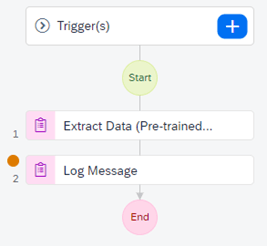
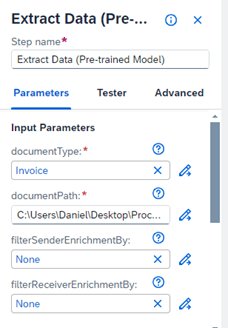
In this case the answer is different – the response is a structured JSON file. Here is the example:
{
  "type": "automationActivity",
  "name": "irpa_core.log",
  "label": "Log Message",
  "inputs": [
    {
      "enrichment": {
        "sender": [],
        "receiver": [],
        "employee": [],
        "product": []
      },
      "headerFields": {
        "documentNumber": {
          "value": "INV-3337",
          "rawValue": "INV-3337",
          "page": 1,
          "confidence": 0.9239444136619568,
          "type": "string"
        },
        "taxId": {
          "page": 1,
          "confidence": 0
        },
        "taxName": {
          "page": 1,
          "confidence": 0
        },
        "purchaseOrderNumber": {
          "value": "12345",
          "rawValue": "12345",
          "page": 1,
          "confidence": 0.8720678091049194,
          "type": "string"
        },
        "shippingAmount": {
          "page": 1,
          "confidence": 0
        },
        "netAmount": {
          "value": 85,
          "rawValue": "$85.00",
          "page": 1,
          "confidence": 0.9248599410057068,
          "type": "number"
        },
        "grossAmount": {
          "value": 93.5,
          "rawValue": "$93.50",
          "page": 1,
          "confidence": 0.9209394454956055,
          "type": "number"
        },
        "currencyCode": {
          "value": "AUD",
          "rawValue": "AUD",
          "page": 1,
          "confidence": 0.836097776889801,
          "type": "string"
        },
        "receiverContact": {
          "page": 1,
          "confidence": 0
        },
        "documentDate": {
          "value": "2016-01-25",
          "rawValue": "January 25, 2016",
          "page": 1,
          "confidence": 0.9253599842389425,
          "type": "date"
        },
        "taxAmount": {
          "value": 8.5,
          "rawValue": "8.50",
          "page": 1,
          "confidence": 0.9949958801269532,
          "type": "number"
        },
        "taxRate": {
          "page": 1,
          "confidence": 0
        },
        "receiverName": {
          "value": "Test Business",
          "rawValue": "Test Business",
          "page": 1,
          "confidence": 0.8581249415874481,
          "type": "string"
        },
        "receiverAddress": {
          "value": "123 Somewhere St Melbourne, VIC 3000",
          "rawValue": "123 Somewhere St Melbourne, VIC 3000",
          "page": 1,
          "confidence": 0.9059818983078003,
          "type": "string"
        },
        "receiverTaxId": {
          "page": 1,
          "confidence": 0
        },
        "deliveryDate": {
          "page": 1,
          "confidence": 0
        },
        "paymentTerms": {
          "value": "within 30 days from date of invoice.",
          "rawValue": "within 30 days from date of invoice.",
          "page": 1,
          "confidence": 0.8695851819855827,
          "type": "string"
        },
        "deliveryNoteNumber": {
          "page": 1,
          "confidence": 0
        },
        "senderBankAccount": {
          "value": "12341234",
          "rawValue": "1234 1234",
          "page": 1,
          "confidence": 0.9177781641483307,
          "type": "string"
        },
        "senderAddress": {
          "value": "Suite 5A-1204 123 Somewhere Street Your City AZ 12345",
          "rawValue": "Suite 5A-1204 123 Somewhere Street Your City AZ 12345",
          "page": 1,
          "confidence": 0.9016555812623765,
          "type": "string"
        },
        "senderName": {
          "value": "DEMO - Sliced Invoices",
          "rawValue": "DEMO - Sliced Invoices",
          "page": 1,
          "confidence": 0.8823633939027786,
          "type": "string"
        },
        "dueDate": {
          "value": "2016-01-31",
          "rawValue": "Ja..."
        }
      }
    },
    {
      "key": "Info",
      "value": 0
    },
    null
  ],
  "containerInstanceUid": "e1691edb-3260-4748-a890-a50f72514dcb",
  "parentInstanceUid": "e1691edb-3260-4748-a890-a50f72514dcb",
  "stepId": "5",
  "line": 11,
  "file": "invoiceProcessing.js"
}
Extracting data from a template
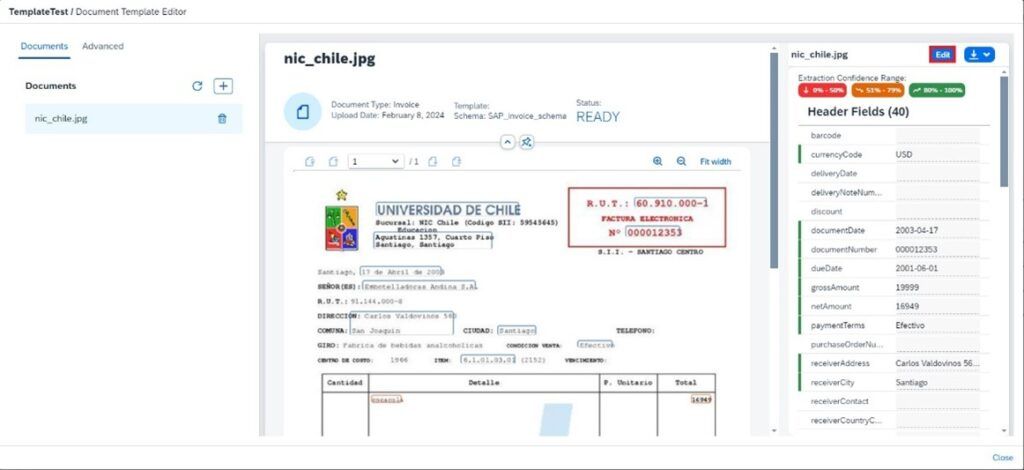
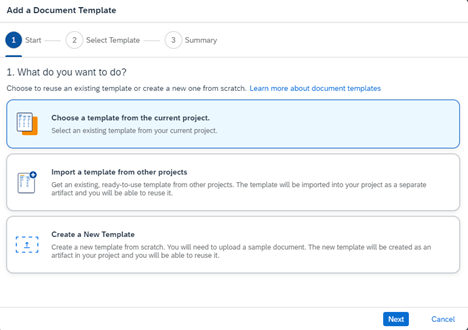
In this case, you must create a template to determine how you want the invoice to look like. It can be an image or a PDF file, and you must select which fields you want to take and which field it corresponds to.
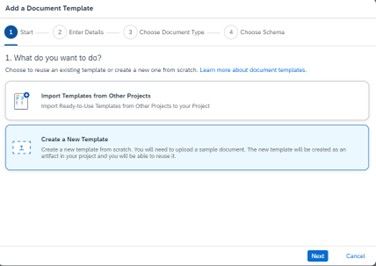
- A new template is created as follows: Add a Document Template > Create a New Template
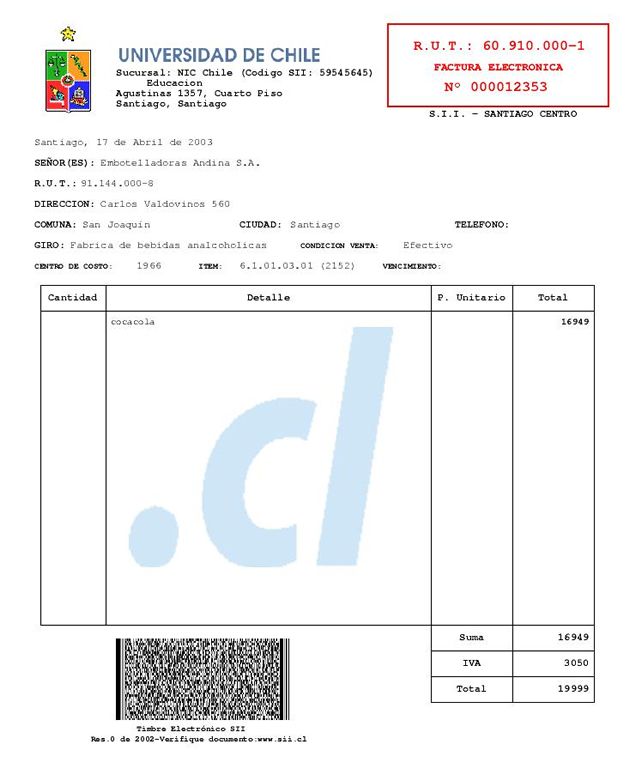
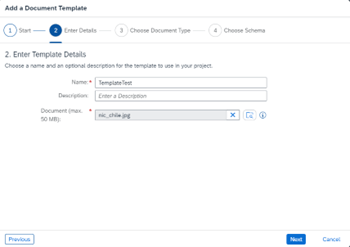
- Name the template and add the correspondent file; in this case, it will be an image.
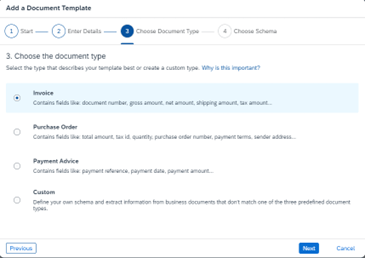
- Select the type of document or make a custom one by creating the fields you want. Then click Next and select and add the schema that SAP provides for the invoices.
- Choose Edit.
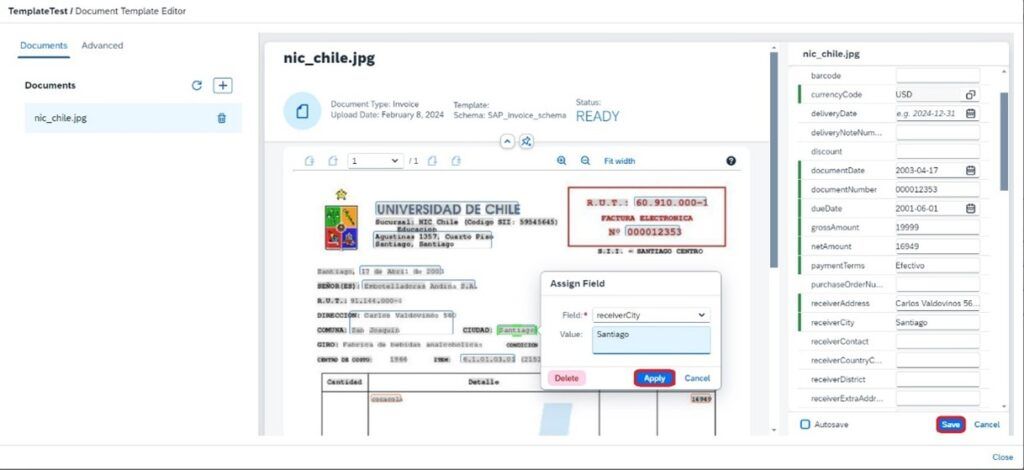
- Select the data in the invoice document from which you would like to extract the information. For example, in this case, the “Santiago” field corresponds to “ReceiverCity”.
- Then create a new automation with the “Extract Data (template)” and “Log Message” tool.

- Add template and put Document path.
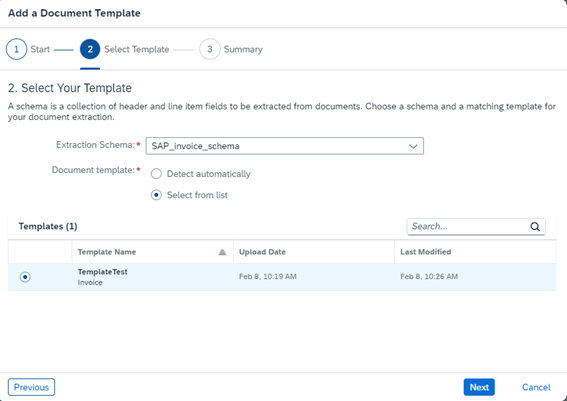
- Save and Test. In this case, for example, the response is a JSON file like this:
{
	"type": "automationActivity",
	"name": "irpa_core.log",
	"label": "Log Message",
	"inputs": [
		{
			"headerFields": {
				"documentNumber": {
					"value": "000012353",
					"rawValue": "000012353",
					"page": 1,
					"confidence": 1,
					"type": "string"
				},
				"taxId": {
					"value": "60.910.000-1",
					"rawValue": "60.910.000-1",
					"page": 1,
					"confidence": 0.9682481584016055,
					"type": "string"
				},
				"taxName": {
					"page": 1,
					"confidence": 0
				},
				"purchaseOrderNumber": {
					"page": 1,
					"confidence": 0
				},
				"shippingAmount": {
					"page": 1,
					"confidence": 0
				},
				"netAmount": {
					"value": 16949,
					"rawValue": "16949.00",
					"page": 1,
					"confidence": 1,
					"type": "number"
				},
				"grossAmount": {
					"value": 19999,
					"rawValue": "19999.00",
					"page": 1,
					"confidence": 1,
					"type": "number"
				},
				"currencyCode": {
					"value": "USD",
					"rawValue": "USD",
					"page": 1,
					"confidence": 0.777056097984314,
					"type": "string"
				},
				"receiverContact": {
					"page": 1,
					"confidence": 0
				},
				"documentDate": {
					"value": "2003-04-17",
					"rawValue": "2003-04-17",
					"page": 1,
					"confidence": 1,
					"type": "date"
				},
				"taxAmount": {
					"page": 1,
					"confidence": 0
				},
				"taxRate": {
					"page": 1,
					"confidence": 0
				},
				"receiverName": {
					"value": "Embotelladoras Andina S.A.",
					"rawValue": "Embotelladoras Andina S.A.",
					"page": 1,
					"confidence": 0.95,
					"type": "string"
				},
				"receiverAddress": {
					"value": "Carlos Valdovinos 560 San Joaquin",
					"rawValue": "Carlos Valdovinos 560 San Joaquin",
					"page": 1,
					"confidence": 1,
					"type": "string"
				},
				"receiverTaxId": {
					"page": 1,
					"confidence": 0
				},
				"deliveryDate": {
					"page": 1,
					"confidence": 0
				},
				"paymentTerms": {
					"value": "Efectivo",
					"rawValue": "Efectivo",
					"page": 1,
					"confidence": 1,
					"type": "string"
				},
				"deliveryNoteNumber": {
					"page": 1,
					"confidence": 0
				},
				"senderBankAccount": {
					"page": 1,
					"confidence": 0
				},
				"senderAddress": {
					"value": "Educacion Agustinas 1357, Cuarto Piso Santiago, Santiago",
					"rawValue": "Educacion Agustinas 1357, Cuarto Piso Santiago, Santiago",
					"page": 1,
					"confidence": 0.8649467875988981,
					"type": "string"
				},
				"senderName": {
					"value": "UNIVERSIDAD DE CHILE",
					"rawValue": "UNIVERSIDAD DE CHILE",
					"page": 1,
					"confidence": 1,
					"type": "string"
				},
				"dueDate": {
					"page": 1,
					"confidence": 0
				},
				"discount": {
					"page": 1,
					"confidence": 0
				},
				"barcode": {
					"page": 1,
					"confidence": 0
				},
				"receiverStreet": {
					"page": 1,
					"confidence": 0
				},
				"receiverCity": {
					"value": "Santiago",
					"rawValue": "Santiago",
					"page": 1
				}
			}
		},
		{
			"key": "Info",
			"value": 0
		},
		null
	],
	"containerInstanceUid": "2ac0e6e7-cdf3-484a-9ef7-62f862fb5f73",
	"parentInstanceUid": "2ac0e6e7-cdf3-484a-9ef7-62f862fb5f73",
	"stepId": "5",
	"line": 10,
	"file": "extractFromTemplate.js"
}